
Your first steps with LeafLoom
What changed in 0.1.9 and how to upgrade
Install or update the bundled LeafLoom skill from Settings → Skill. In a new local Codex chat, use $leafloom to search your knowledge, manage project tasks or capture work. For design, it guides you to Design Studio. The skill calls the running app directly. Enable local AI reading in Settings → AI integration, and enable writing when you want it to save changes.
On Windows, the skill uses its PowerShell entry point to select an available Python 3.11+ interpreter and send parameters as UTF-8, avoiding Store aliases and JSON quoting problems. Update the installed skill and open a new chat to pick up the platform-specific examples.
Work records and reports use the connected vault's 工作中枢/ by default. Optional Feishu/Lark and GitLab workflows load when requested. See Work hub.
Choose your office platforms: Open Settings → Skill → Work hub settings and check all the platforms you use, such as Feishu/Lark and Notion together. Each change saves immediately. Automatic source selection and local-only mode are separate, exclusive choices; clearing every platform restores automatic selection. DingTalk, WeCom and Notion currently save preferences only and are marked not integrated. Sign-in and permissions are separate. In chat, say “use Feishu and Notion” or “add Notion.” Both edit 工作中枢/配置.md; old single selections are read compatibly. Multiple platforms do not expand collection scope or broadcast task writes. Reload settings after chat edits. Change the hub directory under Templates and writing → Default write locations without moving existing notes.
Weekly and biweekly reports use 工作中枢/模板/周报模板.md when present.
To read the original journal, ask $leafloom to mirror a Feishu page and its children into 工作中枢/工作目录/. This on-demand, one-way sync uploads images/videos to the attachment server and rewrites references only after verification, including videos over 500 MB. It preserves local edits and copies of removed source pages, with checkpoints for recovery. Requires local LeafLoom, Python 3.11+ and an authenticated lark-cli; see Work hub.
Help center
Open Help center in the app sidebar or visit the online help center. Browse task topics or search full article text with Ctrl/⌘+K. Articles include steps, expected results, troubleshooting, contents and previous/next links. Language switching retains the task and its standard section. Examples can be copied and screenshots enlarged; topic browsing and articles also work without JavaScript. Help search covers public documentation only and never reads your vault.
Install and open
Developers: In a source checkout, double-click Dev.cmd on Windows or Dev.command on macOS 14+ Apple Silicon; on Mac, sh Dev.sh also works in Terminal. Run chmod +x Dev.command Dev.sh once if a copied/downloaded checkout loses execute permissions. You can also run node scripts/dev-desktop.cjs on either platform. Requires Node 22+ and uv; the first launch installs dependencies. The desktop runs directly from source and frontend edits update automatically. Dev shares the installed app's settings, models, credentials and desktop data, including its configured backend port (18080 by default). Only development dependencies stay in .cache/desktop-dev/.venv; Vite uses port 5173. Quit the running app before switching modes. For isolated testing, explicitly set a disposable VAULT_RAG_HOME. After Python/Electron edits, use LeafLoom → Restart LeafLoom or the tray menu’s Restart LeafLoom. See source development.
On macOS, launching through Dev.command or Dev.sh also shows the LeafLoom logo and name in the Dock. Use Restart LeafLoom to reload desktop source and branding changes.
Optional browser development: Follow the two-terminal setup to start Vite at http://127.0.0.1:5173, then run uv run --locked python scripts/dev-browser.py --home /tmp/leafloom-browser-dev --port 36229 --loopback-ui. Open the printed http://localhost:36229/ in a dedicated browser profile. The required home must be new/empty or previously marked by this launcher; it pins the port and UI mode, so changes require a fresh home and profile. Omitting --loopback-ui keeps the normal app.<installation-id>.localhost UI. The real runtime and background workers remain active, without automatic model downloads or external AI calls. Separate HTML-project origins may still fail in affected managed browsers; do not bypass security warnings. This is browser development, not Linux desktop installer support.
Previous Dev settings remain in .cache/desktop-dev/ for recovery and do not override installed settings. If the shared data directory has no models/ directory, Dev copies the previous model files while keeping the originals; existing model directories are preserved.
The old repository launchers have been removed. Manage installed apps through their own shortcuts and menus. During development, use Dev and quit through its own tray/menu-bar menu or Ctrl+C. The LeafLoom website offers English, Chinese and Japanese pages with screenshots and direct downloads of the latest available stable installer for each platform. Choose Windows or Mac explicitly; release notes and SHA-256 files are linked beside the installers. When a new Release has no installer for a platform, its download keeps the latest available stable version, with that version’s release notes and checksum. A platform is unavailable only if no stable Release provides its installer.
The website’s About page links to the creator’s GitHub and X profiles; open it from the top navigation or footer. Language switching keeps you on About.
Supported: Windows 10/11 x64 and macOS 14+ on Apple Silicon. Linux, Intel Mac and Windows ARM are not supported by the desktop installer.
Recommended: download the desktop installer from the latest Release. You do not need to clone the repository or install Python, Node or Ollama.
- Windows: Download the Windows x64
.exe, run the installer, then open LeafLoom from Start or the desktop shortcut. - Mac: Download the macOS Apple Silicon
.dmg, open it, drag LeafLoom to Applications, then launch it. - Choose a language and try the included demo or connect your own folder. Reading, editing, graphs and keyword search work without downloading the semantic-search model. Prepare BGE-M3 in search settings when needed.
Closing the window keeps LeafLoom in the tray/menu bar; use Quit to stop the application and its local service. LeafLoom → Restart LeafLoom and the tray’s Restart LeafLoom close and reopen the app with the same settings and data directory. Restart prepares note drafts and waits for the local service to stop; an unsaved-content prompt lets you return and cancel. Dev keeps Vite running and synchronizes locked Python dependencies before opening the current source again. When first updating from a version without this menu, quit and launch Dev manually once. Login startup is off for new installations and can be changed in desktop settings or the tray. To update, open Settings → General → App updates → Check for updates. The current and latest versions are shown. Choose Download and install to see the percentage and downloaded/total size. After SHA-256 verification, LeafLoom quits normally (including unsaved-draft prompts) and opens the Windows installer or Mac DMG. Complete the installer; on Mac, drag the new app to Applications. Reopen LeafLoom afterward. A canceled quit leaves Continue installation available. Failed requests/downloads can be retried. Dev only checks versions; update the source and restart Dev.
The service binds to 127.0.0.1, normally on port 18080. See desktop installation details for requirements and validation limits. Developers can use the source installation instructions.
For maintainers, pushing a matching vX.Y.Z version tag automatically builds both
installers on GitHub and prepares a Release draft with SHA256SUMS.txt. Review the
Actions results and draft, then publish manually. Failed builds can be rerun;
published Releases are protected from replacement. Manual Run workflow builds
only provide Actions downloads. Current tag builds have no trusted publisher
signature (Mac uses ad-hoc signing without notarization), so system warnings or
blocks remain possible. See build, retry and release instructions.
Choose a language and folder
The welcome page follows your system language, with English as fallback. Select 中文, English or 日本語 to save a preference. Change it later in Settings → General → Language. Changing language keeps your open document, draft and position; it does not rebuild search indexes.
Choose Try the demo to explore fictional notes in a separate folder. You may edit them; returning preserves edits. Each language has its own demo. Choose Connect your folder to use an existing Markdown/Obsidian folder instead. LeafLoom keeps original files in place; it is a file editor, so edits you save change those files.
Select what to search
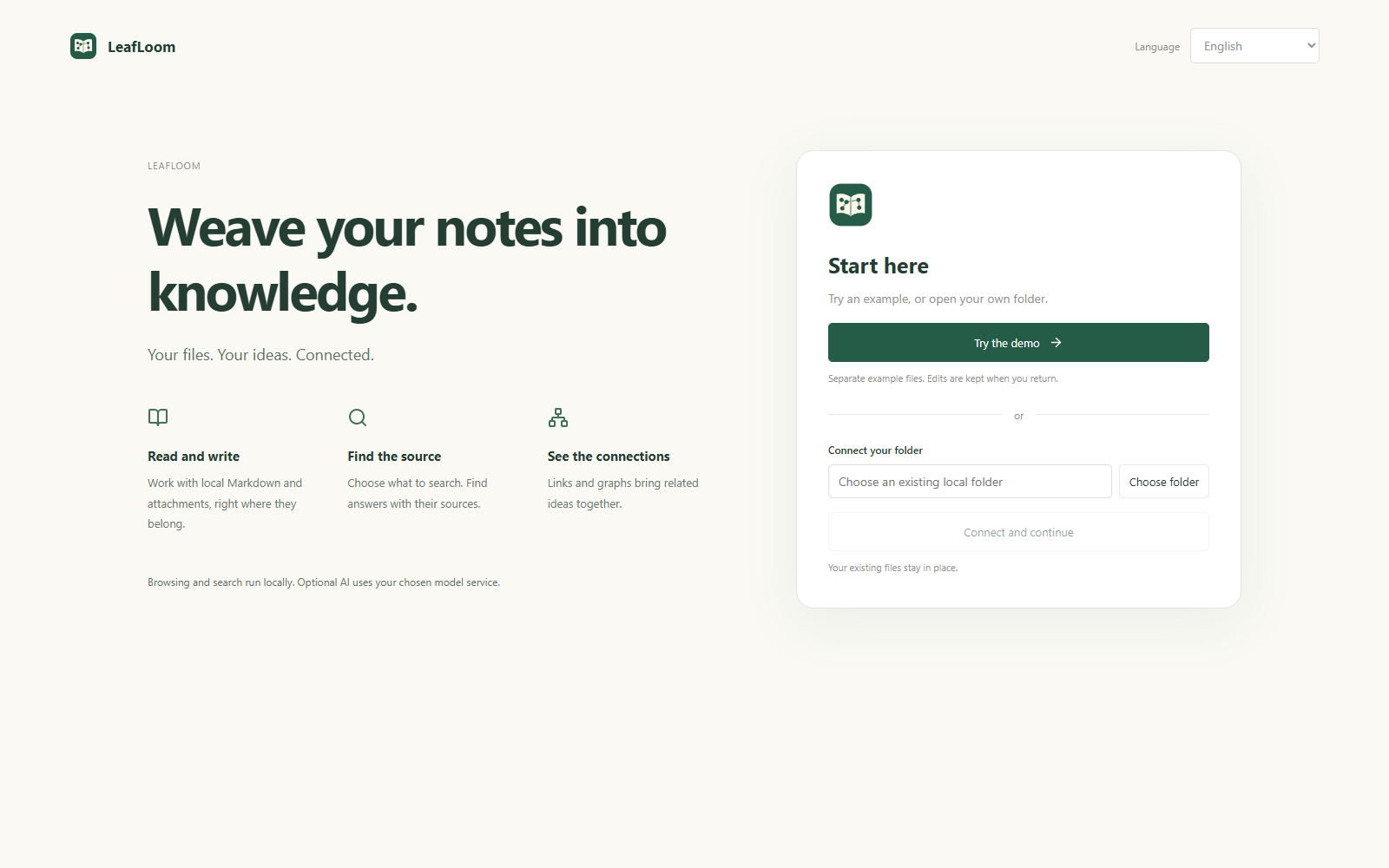
You can browse the entire connected folder. Knowledge search only uses the folders you explicitly select. Choose the whole folder or specific subfolders; exclude a child folder independently. Nothing is selected automatically. Browse for now leaves the knowledge corpus empty.
Only .md and .txt are indexed. Images, videos and other attachments remain browsable but are not transcribed. Hidden/application folders, .ragignore exclusions and opted-out notes remain excluded. Special rule, topic-navigation and estimation folders are advanced settings; ordinary notes do not need them.
Read, write, find and connect
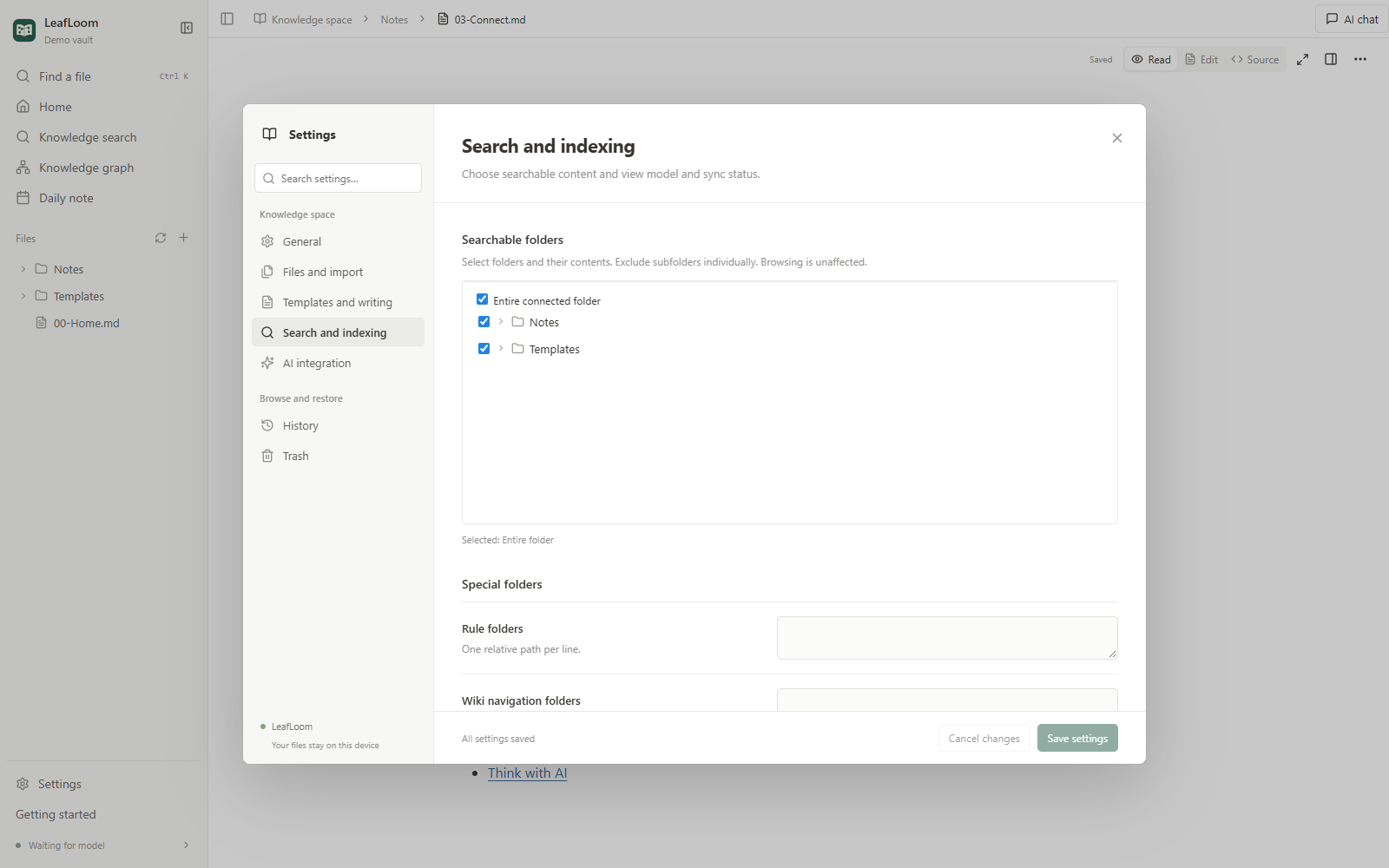
- Open a Markdown note from the sidebar and edit directly on the formatted page. View source opens its Markdown text. Ordinary edits autosave; save conflicts keep your draft so you can review and merge.
- Use New note to write an idea. Add
[[other note]]to connect it to another note. - Use
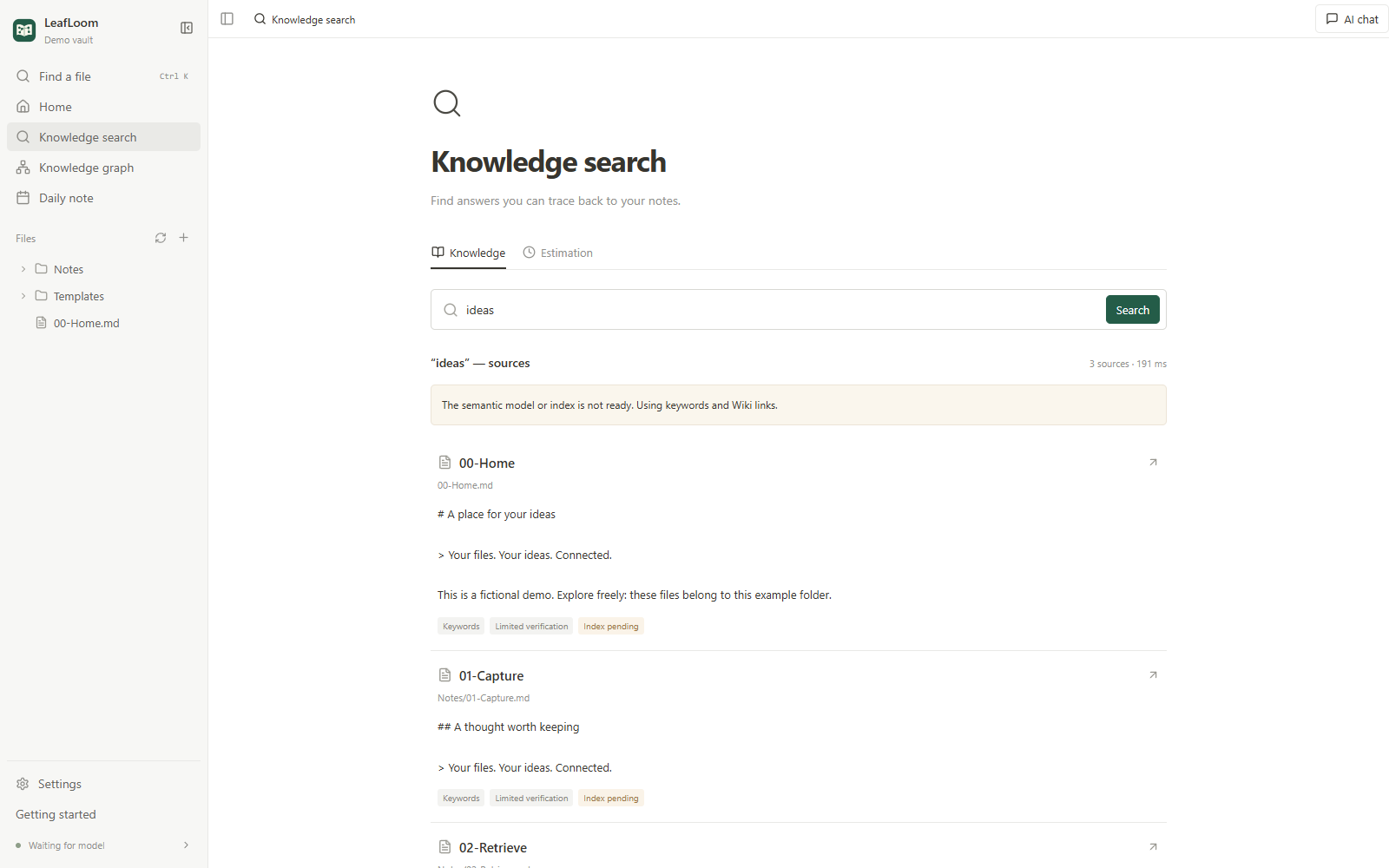
Ctrl/⌘+Kto find a file by name. Use Knowledge search for questions and keywords in your notes. - Open a search result to read the original evidence. Check its context and verification status before relying on it.
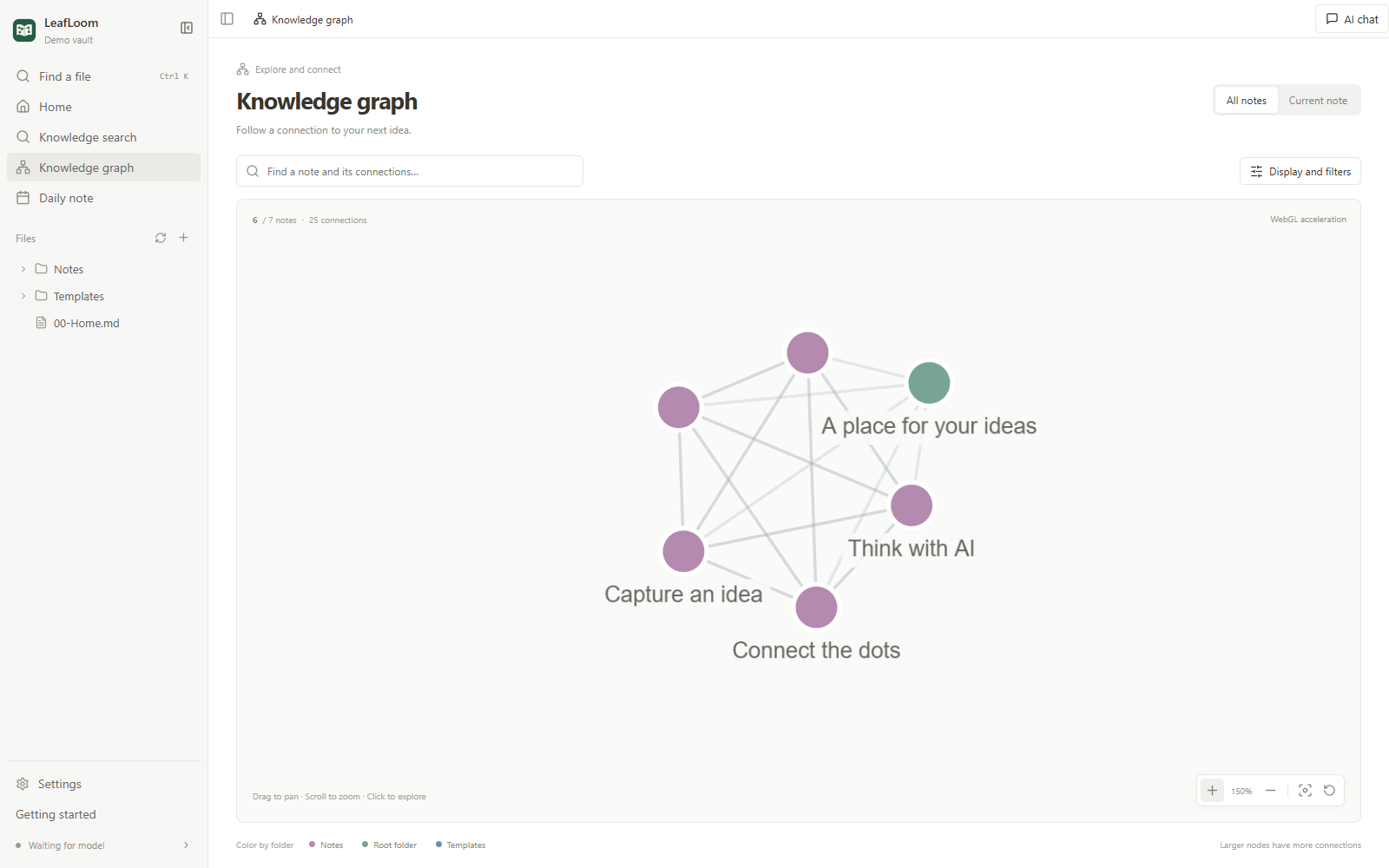
- Explore Knowledge graph. Search a note, filter folders, and follow nearby connections. A backlink needs another note that links to this one.
- The home checklist is optional. Mark steps complete, hide it, or reopen it with Getting started in the sidebar.
Right-click any folder or filename in the top path bar, including Vault, to choose Copy relative path or Copy absolute path. The relative path starts at the connected vault root (. for the root); the absolute path uses the service computer's native path separators. Focus a path and press Shift+F10 for the same menu, or click the current filename/folder name. Copying an ancestor uses that ancestor's path.
Write with commands
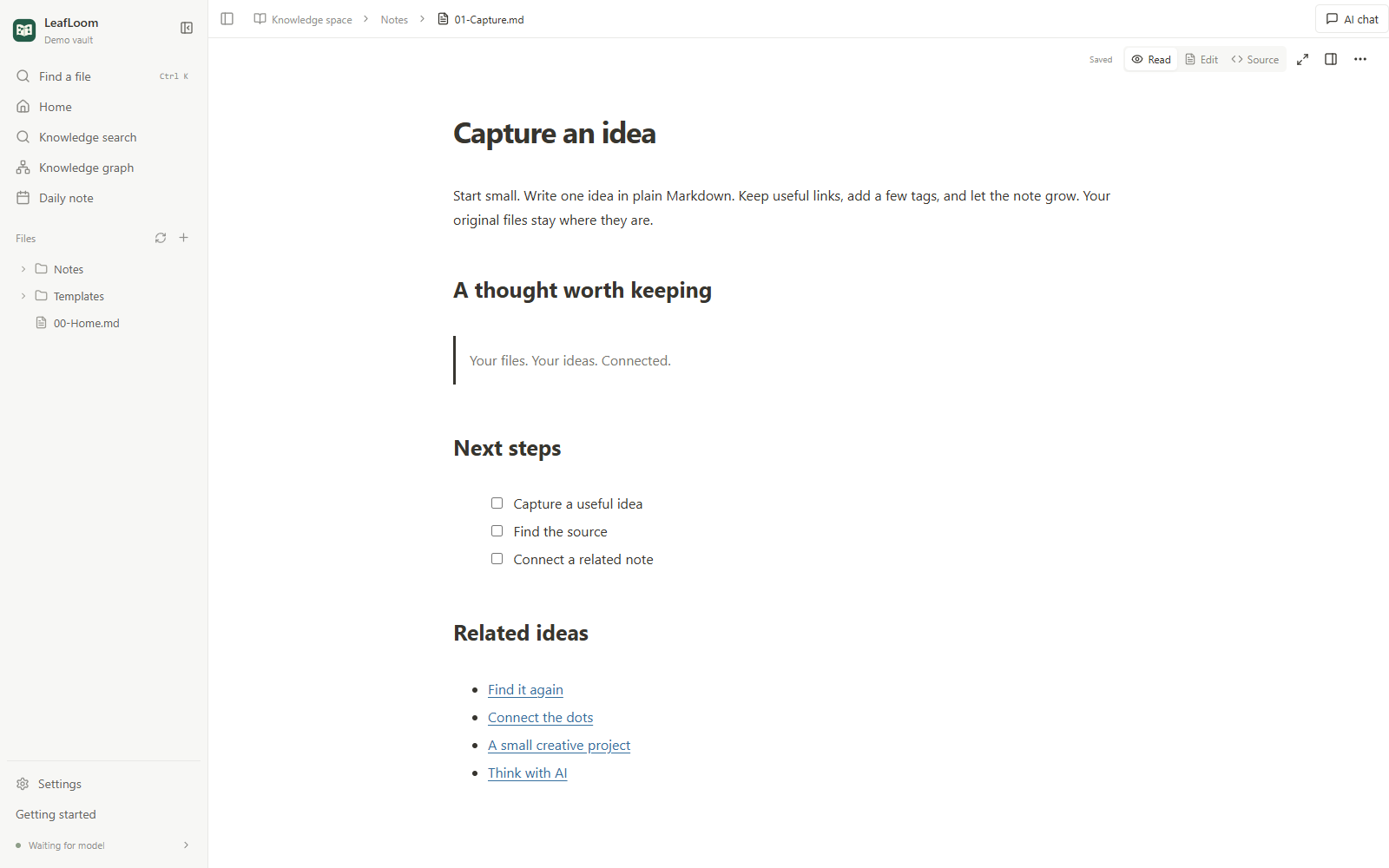
Type / at the start of a line or after a space to insert headings, lists, tasks, quotes, tables, code, images, links, equations or Mermaid diagrams. The menu includes icons, descriptions, categories and recently used items. Search by name or aliases such as /h2 and /todo; use the arrow keys and Enter, or Esc to keep the literal text. Code, formulas, properties and URLs do not open the menu.
Select text for the formatting toolbar. Ctrl/⌘+B, Ctrl/⌘+I and Ctrl/⌘+E toggle bold, italic and inline code. Paste a URL over selected text to make a link, or use Ctrl/⌘+Shift+K to enter one. Type [[ and a note name to choose a note by its full path.
Hover beside a block to insert with +, or use its handle to convert, duplicate, move or delete it. Drag the handle to reorder paragraphs, list items or whole blocks. Select text across paragraphs and type directly in table cells. Tab moves between cells and adds a row from the last cell; the table toolbar manages rows, columns, the header and alignment. Paste screenshots or drop files into the editor: attachments go in the vault's central _attachments folder (or configured attachment_folder) with unique names. Uploading does not replace existing files; undoing the inserted link keeps the uploaded file. Failed or cancelled uploads may leave completed files in that folder.
Files remain ordinary Markdown; unchanged blocks and document properties retain their original source. The page and source views share undo history. Equations and Mermaid stay rendered and have dedicated editing panels. Complex or unsupported content is preserved for display and can be located in source. Changing the interface language keeps the editor and its history. Tables use simple Markdown structures, without merged cells or nested blocks inside cells.
On this page shows the current Markdown note’s headings in a borderless outline to the left of the text. Click the double chevron at its upper left to collapse it; a list icon stays in the same place to expand it again. For headings with subsections, clicking the heading text both folds or unfolds its subtree and navigates to the section. The arrow toggles folding only; headings without subsections simply navigate. Nested folding is retained while editing or hiding the outline. Reading a hidden subsection highlights its collapsed ancestor without reopening it. The current section is blue and follows document scrolling; click a heading to jump near the top of the page or source view. The outline updates while you edit, includes underlined headings and keeps repeated headings separate. Code blocks and frontmatter are excluded. Each note’s open/closed choice is remembered for the current session. Narrow document panes start collapsed; expanding shows an overlay that stays open when toggling a parent heading and closes after choosing a heading without subsections or pressing Esc.
Text highlights and comments
In a Markdown document, select text to reveal five highlight colors and Add comment in the floating formatting bar. Choose a color to mark a passage. To restore plain text, select highlighted text and choose Clear highlight (the slashed circle before the colors), also available in the context menu. Only the selected highlight is removed; outside portions and comments remain. One clear action is one undo/redo step. Click comment (or press Ctrl/⌘+Shift+M) to begin a thread. Use the toolbar's Comments button to see the right panel, add a Page comment without selecting text, reply to threads, edit your messages, resolve/reopen, filter or delete.
Click a quoted snippet to jump to the original passage. Comments try to follow moved text using the quote and its context; deleted or ambiguous quotes are flagged Text no longer found, so you can select a new range and Relink to selected text. The same decorations appear in Markdown source mode without modifying Markdown syntax. Highlights and comments share the page/source undo history: use the toolbar buttons or Ctrl/⌘+Z to undo and Ctrl/⌘+Shift+Z (or Ctrl+Y) to redo. Creation, deletion (including replies), message edits, resolve/reopen and relinking can be reversed in order with text edits during the current session. Comment input fields keep their own text undo. If another window or MCP changed a thread, undo/redo stops without overwriting it. Normal unsaved edits must save first; AI manual drafts must be saved explicitly.
Highlights and comments are user data, not a disposable index: back up .vault-rag/annotations.sqlite alongside your notes. When moved or restored through LeafLoom, note comments retain their identity. The first iteration supports annotated Markdown (the API also supports plain TXT); HTML projects and Design Studio are not yet covered. See annotation architecture.
Open HTML projects, websites and Design Studio
- Open a local
.htmlor.htmfile from the directory. Confirm its Project folder and choose Save and open. Select a folder containing the entry and all companion resources; the website's/maps to this folder. An empty folder value uses the connected knowledge folder's root. - Use Project settings to change the folder or enable SPA routing for a client-side application. This opens the project entry for missing page routes; missing scripts, images and JSON still return errors.
- Use back, forward, refresh, full screen or Open in new tab in the website toolbar. In the desktop app, the same website runs inside its window. Browser and desktop website storage are independent.
- To open an existing website or development server, choose Preview → Open website and enter its HTTP/HTTPS URL. LeafLoom does not install dependencies or start a backend. A site may refuse embedding or require sign-in.
- Open Design Studio from the sidebar or a folder's New design project here menu. New projects use a managed visual document; existing
1.1.0projects keep their layer-review tools and can be converted into a separate editable copy. Choose mobile portrait720×1560, mobile landscape1560×720, desktop1440×900or custom page dimensions.
Source opens the HTML text. Ordinary edits autosave; if an unsaved draft remains, the website view previews it in a temporary origin without saving it. Companion resources still come from disk. HTML remains browsable independently of the selected search folders and is not indexed for knowledge search.
HTML project and Design Studio assets stay inside the project folder (assets/, Design/Assets/, and so on). They are not stored in the central _attachments library and are not included when migrating attachments to a server. If an older registered HTML project still lives under _attachments, close LeafLoom and run the one-off script scripts/localize_html_attachments.py (dry-run by default; add --apply to write): it moves the project tree to Web/<name>/, external central dependencies to <project>/assets/, and rewrites static HTML/CSS references. Script-generated references are reported as blockers.
On macOS 14/15 Safari, use Settings → General → Safari local website compatibility if local websites do not open. macOS requests administrator authorization for this installation's resolver configuration. See HTML project details for removal and platform limits.
When an older loopback address opens the new workspace address, local drafts and view state migrate automatically. Existing destination values win; a conflict banner offers a backup download. Original browser storage is retained. This migration does not synchronize browsers or the desktop app.
Build game screens in Design Studio
Enable the Feishu connection in Settings and authorize the required Miaoda app permissions first. In Design Studio, choose Publish to, then Miaoda, select pages and create a course app or associate an existing Design Studio course app by app ID. Association checks the course identity and remote files; unrecognized changes pause the operation and cannot be bypassed by reassociating. Publishing replaces that app’s course with the selected pages; existing access settings are preserved. A new app first publishes an empty shell. Course content is uploaded only after organization access is confirmed, so two approvals may be required. The saved revision, assets and scripts are packaged into a background job. Missing links, dynamic references, authorization and approval requirements are shown in the dialog. If a job stops after an uncertain operation, inspect the app before acknowledging it or continue only after asset verification.
Miaoda publication status follows the current background job. If the initial release has advanced to asset upload, completed, or stopped, refreshing shows that state instead of an obsolete release error. Temporary status-read errors retry with a bounded delay. After an interrupted upload, Verify assets and continue checks the exact remote filename: one confirmed result is reused, a complete empty result allows re-upload, and ambiguous or incomplete results stay paused.
Miaoda's editor preview and published app use separate workspaces. If the published course exists but the editor still shows the starter page, inspect cloud changes and merge origin/sprint/default while preserving existing edits; refreshing the preview alone does not pull code. Verify rendered pages, navigation and interactions, not just release status. Published courses use the platform's extensionless content route and bundle the frame shell with the app before creating its isolated same-origin frame, avoiding stalled embedded navigation. Navigation waits for the course runtime, and a loading timeout offers retry and standalone access.
-
The project home offers search, recent/favorite projects, rename, copy, move, archive and a recoverable recycle bin. Workspace undo/redo covers project management; project history covers design edits across pages and restarts.
-
Use Pages to add, group, reorder or duplicate screens. Right-click a page in the list to duplicate or delete it; deletion can be undone and the last page cannot be deleted. Insert text, images, containers, buttons, shapes, SVG, custom HTML, embedded pages, or game starters such as a HUD, character card, gallery and dialog. Select layers, Shift-select several, then use the canvas and inspector for position, size, rotation, text, appearance and row/column/grid layout. Child pages and component instances retain separate identities.
-
Right-click an element on the canvas or in the layer list and choose Copy element location, then paste it into an external AI chat. The inspector offers the same action for the current selection. Hold Shift to select several elements; right-clicking an already-selected element preserves the selection. The compact JSON contains only the absolute
filepath toDesign/studio/project.json,page_id(orcomponent_idfor a master component) andnode_idfor one element ornode_idsfor multiple elements.variant_idandhas_pending_changes:trueappear only when applicable. Wait for pending saves; AI should read the latest design and use version-checked operations to preserve undo history. The desktop app uses the system clipboard; restart LeafLoom after updating native copy support. With the canvas or layers focused, press ⌘+C on Mac or Ctrl+C on Windows to copy location information for non-image or multiple selections. A single selected image copies its source picture; use Copy element location explicitly for its location information. Text editing, input fields, source editors and ordinary text selections keep their normal copy behavior; preview mode is unchanged. -
Upload or paste artwork in Assets. Inspect dimensions/transparency, set names/categories/tags, locate uses and replace one image or all references. Publish components and assets to the personal shared library; import a newer version explicitly. Dependencies are copied into the project for offline use. A referenced asset cannot be removed until its uses are replaced or deleted.
-
The Animation inspector offers fade, slide, scale, bounce, breathe and spin. In Scripts and source, attach
mount(ctx)JavaScript to an element or page and expose parameters as inspector controls. Scripts pause during editing. Preview a component or the whole screen, then stop to restore the design state; logs identify the affected element. Source changes and parameters share the same undo history. -
Export opens a page selector for an interactive HTML ZIP from the saved version. Select at least one page; order follows the project and the first selected page opens first. Only referenced resources and dependencies are bundled. The dialog lists known links or embeds to unselected pages so you can include them; those links do nothing and embeds are blank if omitted. Script-generated references cannot always be detected, and external URLs are not bundled. Inspect interactions after unzipping and opening
index.html. -
Send to AI includes stable element IDs and the current revision. Managed design edits apply directly and one AI batch is one undo step.
Ctrl/⌘+Zundoes andCtrl/⌘+Shift+Zredoes, including after closing and reopening. Save conflicts retain pending changes; inspect them before choosing reload/reapply. Export after pending saves finish, unzip the result and openindex.htmlwith its companion files. -
HTML conversion retains document-root context, native mixed text and responsive image candidates. Unreadable external stylesheets are omitted with a warning; original source remains intact. Viewport/rem units and media queries still use the renderer environment. Native text runs expose content editing; select their parent for layout and typography. Compare the converted page with its original before relying on it.
-
Navigate the canvas with Select (
V) and Hand (H), or hold Space while dragging. Use the zoom percentage, +/−, fit page (Shift+1) and fit selection (Shift+2); Ctrl/⌘+wheel zooms around the pointer. Camera position stays steady while editing. Expand/collapse containers in Layers, use the selected-layer breadcrumb to reach ancestors, and edit grouped Layout, Appearance and Typography properties. If the isolated canvas cannot connect, use its retry action; the management shell can still show saved layers and properties. -
Convert a copy preserves the original project and imports authored DOM/CSS, text and assets, adapting recognized navigation, settings switches and context-dependent page states. Original scripts remain in the copied source; other legacy event handlers and runtime state need new scripts. Review conversion notices and compare the copy with the original before replacing a workflow. See the workflow and script API for commands, import limits and performance acceptance targets.
For AI media import, prefer design_import_asset with a connected-vault source_path or a source_file_id returned by the Feishu CLI. Videos stay on the service machine instead of making a Base64 round trip through the AI connection. Request include_document:false for a small receipt. Imports keep size/hash checks, current access permissions and undo history; paths outside the connected vault are not accepted. See the MCP examples.
MCP note saves return saved:true and the committed revision after the file and history are written. Catalog, attachment metadata and search indexes update in the background; index_pending describes search indexing, not an unsaved file. Exact-path reads and further revision-checked edits remain available while metadata is preparing. Global queries may briefly return metadata_pending; retry those reads rather than repeating a successful save. Restart LeafLoom to load backend fixes; the built-in restart flow handles local drafts.
To sync a design between computers, close LeafLoom on the sending computer, sync the entire project folder (including assets) and its .vault-rag/design-studio history, and wait for sync to finish before opening it on the receiving computer. Keep the same project path within the vault; the vault root may differ between Windows and Mac. Use the fixed version on both computers and edit on only one at a time. Opening does not rewrite history ownership, while duplicate project IDs in different folders and conflicting interrupted saves remain blocked. Use the project home’s Copy action for an independent copy.
External source edits. You can edit Design/studio/project.json with a text editor or AI tool. On the next open or reload, a complete, valid document is accepted as one External file changes history entry, with undo/redo. The external file is not rewritten. Formatting-only edits add no history entry. Old editor saves still stop on a revision conflict and keep pending edits; reload and reconcile them before saving. If the JSON is incomplete or invalid, finish or correct the external edit and retry. Interrupted saves that conflict with external content and incomplete history remain protected. Restart LeafLoom after updating this feature.
The design project Recycle bin supports restore, Delete project permanently and Empty project recycle bin. Permanent actions list affected projects and require confirmation; their files, design histories and related management undo records are removed. Other projects and shared libraries are retained.
If project home reports that the service has not loaded project management, quit the app from the tray/menu bar and reopen it. Refreshing the page does not reload backend interfaces. Delete, move and related actions remain disabled until management loads; use Retry to reconnect.
Recovery and everyday use
External file changes are watched. Refresh data refreshes views; browser reload does not upgrade the background service. Switch folders in Settings. Delete sends content to Trash; use Settings → Trash to restore it. History keeps saved versions and file operations. Emptying Trash permanently cannot be undone.
Files and local history are not a cloud backup. Back up your folder using your preferred tool. LeafLoom does not supply cloud sync or universal Obsidian plugin compatibility.
Optional AI
See AI connections. Browsing and local retrieval work without an AI subscription or CLI. A configured external AI service may receive selected content. AI note suggestions enter a reviewable draft and require manual saving; managed design edits apply directly and can be undone in project history.
Optional Feishu / Lark connection
-
Install, configure and log in to official lark-cli separately. Its credentials stay with the CLI.
-
Open Settings → AI connections → Feishu / Lark, enable integration, optionally enter a native executable path and CLI profile, then save and select Verify connection. A blank path uses automatic detection.
-
In MCP access permissions, enable Feishu reading and, if wanted, writing separately for local AI clients and Tunnel. Copy the dedicated local connection configuration when first enabled; refresh the client's tools after a backend update.
-
Ask your AI client to inspect the installed CLI help and embedded Skill, then use the generic read/write tools for documents, Base and other business commands. Block edits support XML headings and rich structure. Document updates need the revision returned by reading. A verified account does not guarantee access to every resource.
-
High-risk commands and raw API calls require the separate local/Tunnel high-risk switch (off by default), plus explicit confirmation of each operation. Turning off read or write also turns off high-risk access.
-
Transfer attachments with temporary file IDs and chunked upload/download. Importing an existing connected file additionally needs note-read permission. After upgrading, refresh the client tool list: the four previous document/Base tools are replaced by CLI discovery, read/write execution and file transfer.
Tunnel conversations share the permissions configured for that Tunnel connection. LeafLoom authenticates its runtime separately from a conversation's connector bearer; changing chats does not require a permission refresh or reconnect. Disabling a resource still revokes access immediately.
Dev and the installed app use the same saved Tunnel configuration and application lifecycle: connect on startup when enabled, stop on Quit. Dev reuses the registered installation's runtime when available. One shared-directory owner is allowed; do not also run a standalone tunnel-client for the same connection. MCP authorization errors identify leafloom_mcp; they do not require Feishu reauthorization. For Base tables, use an ID returned by the table list, rather than an unverified URL query value.
Connection status distinguishes missing/incompatible CLI, missing configuration/login, expired login and network problems. Complete setup or reauthorization externally, then verify again. Cloud operations need network access and return requested content to the calling AI. They do not automatically import or index it in your local knowledge base. See capabilities and limits.
Frequently asked questions
Why are there no search results? Check the selected folders, file extensions and exclusions. Check indexing in Settings. If the semantic model/index is not ready, the app reports a keyword/Wiki fallback. Do not treat that as completed semantic indexing.
Do I need to download a model before starting? No. The desktop package includes its private runtime; reading, editing, graphs and keyword search work without BGE-M3. Download the model from search settings only when you want semantic retrieval. Source installations prepare their dependencies separately.
Model preparation shows the current connection, download and verification stages in Settings → Search & index and in setup. Downloaded file counts, received bytes, speed and elapsed time update in place. After 30 seconds without progress, a waiting hint appears; failures retain details and a retry button. Close Settings to keep reading while preparation continues; quitting the app interrupts it. Retrying reuses available downloads. Once the files are ready, indexing has its own progress.
The model section also shows the actual storage path. Select Open folder to view it in your system file manager; if it does not exist yet, an empty folder is created without downloading the model.
Where is my data? Notes remain in the connected folder. Indexes, history and Trash are in its .vault-rag/. Private configuration, models, tokens and AI history are in %LOCALAPPDATA%\VaultRag on Windows or ~/Library/Application Support/VaultRag on macOS. VAULT_RAG_HOME can override the private location.
Does it work offline? The installed desktop app supports local reading, editing, graphs and keyword search offline. Semantic retrieval also needs the local model prepared first. External AI depends on the chosen provider's network requirements.
The page is blank or changes do not appear. Complete the frontend build/install, restart the service, then reload the page. Check the service logs and port conflicts. Restarting a browser alone does not load new server code.
Can I use a network folder? The desktop app expects a local folder. UNC shares and symbolic-link/junction access are rejected to keep file operations inside the connected folder.
How do I uninstall? Quit LeafLoom, then uninstall it through Windows Settings or remove it from Applications on Mac. Notes, configuration, indexes and models are retained. For a legacy source-installed service, use vault-rag service uninstall from that environment. Remove retained data separately only when you no longer need it.
Full note and design access from AI clients
Design MCP reads now open with small, paginated summaries (20 entries by default). Use page_id for element summaries and section for asset/component/style/script lists; use full=true with the needed page/node or resource ID to fetch exact source. Follow next_offset with the returned revision as expected_revision. Design edits, undo/redo and imports return short receipts; include_document=true requests their former full response. design_get_project also defaults to a compact managed view. The complete document remains available through design_document(full=true) without selectors. Restart the updated backend and refresh client tools; the built-in assistant uses the same defaults. See MCP read options.
The same workspace read/write grants now include attachments. After restarting the updated backend, refresh the tool list in the AI client you use; refresh the LeafLoom ChatGPT plugin only if you use that connection. vault_files searches metadata, returns file versions and Markdown links, reads original bytes, prepares ZIP downloads and checks tasks. vault_files_update uploads chat files or local byte chunks and prepares move/rename, trash or organization plans. Read the plan, then explicitly execute, resume or undo it with its current revision; later edits are never overwritten. Uploads go to the configured attachment folder, preserve duplicate names and do not edit a note automatically. Chat file uploads run in the background; inspect task results before retrying failed files. See the file tool contract.
In Settings → AI connections, enable full MCP reading for your local AI client or ChatGPT. Enable each connection's write switch separately to allow direct saves with history and recoverable deletion. Clients can edit connected Markdown/TXT/HTML and designs. Managed projects use design_document, design_operations, design_history, asset import, shared-library and export tools; the six legacy design tools remain available. RAG still uses only selected folders. Older connections retain their original five read-only capabilities. See AI setup, the tool contract and Design Studio.
Dev and the installed app use the same MCP address and access settings (normally http://127.0.0.1:18080/mcp). After upgrading the server or changing its dedicated credential, reload the connection in the client you use. If you use ChatGPT, refresh its plugin tools too. A cached session can still report legacy access even when a fresh connection has full access; check vault_index_status.capabilities as well as the tool list.
Attachment manager
Attachment servers and automatic sync
While scanning, the toolbar shows directories scanned and pending and refreshes every two seconds even with Sync status closed. The dialog retains discovery counts after a failure and explains connection-establishment timeouts, response timeouts or interrupted reads in plain language, with the failed-attempt time and next connection retry when available.
Temporary metadata connection failures show an automatic-retry message with the previous connection issue collapsed. An active retry displays Reconnecting…, then Connection restored; syncing metadata after a verified metadata response, even if there are no queued uploads. Old red errors disappear while that retry runs and after success. Authentication, authorization and invalid-response errors remain visible. Reconnection wakes metadata sync without waiting for the full attachment scan; retries retain the last successful-sync time.
Local uses the local filename index and original files without reading the server catalog. All shows local attachments first, then merges the saved server catalog using the selected sort order. Server and individual servers read only their saved catalog; opening a list does not initialize an index or scan a server. If the server catalog is unavailable, local results retain the active filters and their own pagination; retry returns to the latest first page. External file changes appear when the local index updates.
Previews and thumbnails use valid local file or byte-range caches immediately and check server versions in the background. Files without cached content download on demand. A confirmed version change applies to subsequent reads; an active response never mixes versions. Downloads retain their existing synchronous verification.
Attachment servers are optional. Without one, note and hub uploads stay in the local _attachments folder; open Attachments and prepare the local catalog to browse, preview and upload. Add a server only when you want NAS browsing or migration. After connecting, Sync status → Import existing files into catalog registers membership only (no original downloads) so daily work no longer walks the whole tree; paste/upload promotes to the server, keeps note-sized images as local vault cache for embeds, and drops larger/non-image staging so grids show thumbnails until you Cache locally.
Open Settings → Attachment servers and add a connection. Enter the address, account and password, then Save and connect. WebDAV uses an HTTP(S) service address; SMB uses smb://host/share/subfolder or a Windows shared-folder path. SMB2/3 uses explicit account/password authentication, not a system mount or the current OS login. DFS referrals and reparse paths are not followed. Public WebDAV requires HTTPS; numeric private/local HTTP addresses remain supported. No server brand is required. Existing profiles, roots, upload directories and metadata bindings are retained. Listing does not use ZSpace Sync folders. Connection tests report round-trip latency; prefer Tailscale direct (not a DERP relay) and a LAN WebDAV URL when the PC and NAS share a network.
Use separate accounts on a shared DUFS server: each person connects to their own account URL. Administrators can follow the single-container DUFS setup and DJ migration guide; it includes the strict symlink patch, password preservation and rollback.
Each card offers Edit connection, enable/disable and Use for new attachments. The first server in a new configuration becomes the upload destination. Changing that destination affects future uploads only; it does not move originals or change an existing metadata-library binding. Notes stay in the local vault. New servers use Incoming for uploads and Incoming/LeafLoomCatalog/v1 for metadata. Preview cache and upload-queue limits retain their existing values. Download capacity remains in Download settings.
Migrate local attachments to a server under the same Settings → Attachment servers page: choose the target server, optionally paste vault-relative paths (one per line; empty previews the whole attachment folder), preview, then confirm. Registered HTML project trees and their protected dependencies are excluded—HTML project resources do not participate in server migration. Interrupted, failed or waiting jobs use Resume this migration on the same job—do not start a second full migration in parallel. After upload and SHA verification the server holds the authoritative original; migrated local originals are removed after verification, retaining lightweight previews. Use Cache locally or open the file to retrieve full local content; clearing downloaded cache never deletes NAS originals. A preview with 0 files and only exclusions means local rules (HTML/project dependencies, disabled types, or already on the server)—expand exclusions for the reason; it is not “missing because the server already has them.” On a slow remote path (for example Tailscale DERP-only), set the server URL to the Tailscale 100.x address, keep batches small (about 50–200 paths), plug in the PC, prevent sleep and leave LeafLoom open; resume after disconnects. At home prefer the LAN address (192.168.x.x) for larger batches or a full-folder run. While a job is transferring, the card shows completed/total counts, byte progress, transfer speed and the current file; a large file on a slow link may show a very low speed—keep this page open. Do not change the server URL, clear the outbox or run multiple migration jobs while a batch is in progress.
After credential recovery, directory discovery respects the saved due time and a short startup grace; a reconnection may request an earlier check. Later checks run 2 hours after completion. Automatic scans run one server at a time. Metadata, groups, covers and attachment references synchronize in the background; originals download only when requested. A failed/incomplete scan preserves existing records. Authentication failures pause until credentials are updated. Sync stops when the app fully exits and resumes on its next launch. Desktop passwords remain system-encrypted; browser passwords remain in backend process memory. Existing official-client bridges retain their connection behavior and still require the official client to remain available.
For WebDAV metadata uploads, the destination check reads only the directory itself, so a large existing cover directory does not need to be listed for each upload. Uploaded data is still read back and verified before it is marked synchronized.
Discovery now journals each completed directory on this device. After a network interruption or app restart, the unfinished pass reuses those directories and continues the remaining work. Later automatic checks reuse directory listings for 2 hours and independently revalidate expired child directories, even when their parent is cached. Each server uses at most two directory readers. The Sync status dialog identifies the initial, incremental or resumed pass and shows how many directories were reused. Sync now uses this same cache; Check all directories bypasses it to verify additions, changes and deletions immediately without downloading originals. Failed passes never mark files missing; deletion still needs a completed pass and a not-found check. Changing the vault, address, account, credential version or metadata namespace invalidates the old checkpoint. A first baseline is necessary after upgrading from a version without directory checkpoints.
Servers without a WebDAV change feed cannot report every nested change without directory queries. Parent timestamps and ETags are not used to skip expired descendants, so this fallback provides periodic reconciliation rather than an immediate server change stream. Unchanged file records are not rewritten, and cached listings do not roll back newer file metadata obtained when opening or uploading an attachment.
The attachment toolbar contains Attachment overview, Sync status and Attachment information. Detailed statistics and synchronization details appear on demand. The information panel starts collapsed and remembers your preference. Closing it keeps the selected file. Unsupported formats show an existing cover with an expand action, without downloading the original; missing/broken covers show a file icon and download action. Background updates preserve selections, filters, scroll and metadata drafts. If a paged snapshot expires, List updated — show latest loads the latest first page on request.
Selecting a group changes the page heading and loads only that group. During an explicit group/source/search change, the previous list and counts are cleared while the new scope loads; a failed read shows Retry instead of displaying the previous group under the new tab. Background synchronization continues to preserve the current list and drafts, and local index progress updates do not cancel an in-flight group request.
Create and import is in the file directory actions and sidebar, using the selected directory. It contains file/folder creation, import and template creation. Attachment uploads remain in Attachments. Local folder reorganization entry points stay hidden; server migration lives under Settings → Attachment servers. Uploading, downloading, renaming and recycling remain available. File changes retain their reference checks and confirmation.
If listing a directory times out during a scan, LeafLoom retries it up to twice. If the timeouts persist, the scan stops and retains existing records; check the connection or server load before refreshing again.
The server root and each subdirectory may contain a visible leafloom.ignore. It supports Gitignore-style paths, globs, # comments and ! reinclusion; child-directory rules can override ancestor rules. Scanning always visits subdirectories to read their rules rather than applying Git's excluded-parent directory pruning, so child rules can reinclude files excluded by an ancestor. The defaults exclude .md, .markdown, .base, .html, .htm and script/source-code files; ! can also override these defaults. .txt, .json, binary and design resources remain included. Edit rules through the NAS file manager: LeafLoom reads them without requiring Dufs write permission. Refresh the server directory after changes. Only a complete successful scan hides excluded entries from attachment lists, metadata searches and size totals. Exclusion does not delete NAS originals or mark them missing: existing asset IDs, tags, old references and cache remain, and old IDs/references can still read the original. Rule read/parse failures do not partially hide existing records under the new rules; correct them and refresh again.
Save the file as UTF-8 (an optional BOM and CRLF are accepted). Its first line must be exactly # leafloom-ignore v1, with no blank line before it; an absent or invalid header stops the refresh instead of treating an authentication/error page as rules. Each file is limited to 64 KiB, 2,048 lines and 2,048 characters per line. Copy this template to the root or a subdirectory and adapt its rules:
# leafloom-ignore v1
# Exclude temporary files under this directory
*.tmp
# Reinclude this Markdown file as an attachment
!reference.md
Attachment groups, source metadata and downloads
Attachments opens All attachments, with no store-specific or format-specific tabs. Use New group to create your own tabs, rename them, move them left or right, or delete them. Groups are separate from attachment categories. A file may belong to several groups; deleting a group never deletes files or metadata.
Groups support manual membership and rules for source, directory, format, category and tags. Conditions are combined with AND; values within a condition use OR. Directories include descendants and format matching ignores case. Select files and choose Groups to include, exclude or reset overrides. Results are rule matches plus manual inclusions minus manual exclusions. Source, search, format and sort controls remain available.
Definitions and persistent member identities are saved in the vault and automatically replicate to the bound metadata server under attachment-groups/events/, excluded from attachment scans. New connections use Incoming/LeafLoomCatalog/v1; existing bindings are preserved. Offline changes survive restart. Concurrent group edits preserve both versions for explicit resolution in the group editor. Unavailable local files from another device retain membership without binding to same-named files.
Existing source descriptions and official covers appear on their linked attachments. Files remain individual entries, with no product grouping or automatically created category tabs. Personal fields remain separate: nonempty personal description/category take precedence, while personal tags and source keywords are searchable together. Source refresh never overwrites personal fields. Missing covers receive no generated substitutes. Existing catalog associations and legacy MCP interfaces remain compatible; source-specific collectors are optional adapters.
The sidebar Downloads page lists remote attachment downloads and local ZIP tasks. Download attachment streams a remote original into verified staging. Ready to save means staging is complete; select Save to device to save a copy. Tasks continue while navigating and records recover after restart. A single local file downloads directly without extra staging. Legacy ZIP jobs retain their one-hour expiry and must be restarted after interruption.
Download settings controls the separate 20 GiB remote staging budget, independent of the 2 GiB preview cache and upload queue, with at least 5 GiB disk reserve. Controlled handles last 24 hours; prepare expired files again. Staging follows capacity and seven-day retention rules while protecting active transfers. Clear staged file removes only the local temporary copy. Strong validators enable the existing resume behavior; other transfers restart completely.
For AI/MCP, vault_files supports groups, list with group_id, source-enriched stat, prepare_download and download_status. vault_files_update uses group_update for group and membership edits with revision checks and write authorization. Read-only connections cannot edit groups. Legacy products, product and product_update remain compatible. Full attachments are delivered through Downloads rather than MCP Base64 chunks.
Batch collection script
Some official pages omit JSON-LD. Collection can still read the official structured product and publisher entities when their IDs agree; a title or preview image alone is insufficient.
With LeafLoom running and the catalog configured, run the repository's collection script against the same vault:
python3 scripts/collect_unity_catalog.py --root /path/to/vault --group "Unity Asset" --dry-run --report /path/to/preview.json
python3 scripts/collect_unity_catalog.py --root /path/to/vault --group "Unity Asset" --start --wait --report /path/to/collection-report.json
python3 scripts/collect_unity_catalog.py --root /path/to/vault --start --wait --interval 10 --report /path/to/collection-report.json
python3 scripts/collect_unity_catalog.py --root /path/to/vault --status --report /path/to/status-report.json
python3 scripts/collect_unity_catalog.py --root /path/to/vault --apply-chinese /path/to/chinese.json --report /path/to/chinese-report.json
The script controls the local backend; it does not automate a browser, use store-account cookies or download package originals. Collection resumes the backend's saved progress, preserving completed review-needed judgments after interruption while retrying blocked access and network failures. Background synchronization coalesces repeated scans and resumes pending uploads before checking the remote catalog when a verified checkpoint is available; first-time or explicit synchronization still checks the remote catalog first. Stopping the monitor with Ctrl-C does not cancel the backend task. succeeded counts obtained official facts, not completed Chinese summaries; check Chinese summaries and translation status separately. A reported legacy_unresolved count is unverified work from an older checkpoint without sufficient identity data, not a success count; reconcile complete progress with the package inventory. Chinese input updates only supplied official translation fields and preserves personal tags and notes. See the input format and connection options.
Update and restart LeafLoom before using the batch options. --dry-run previews local inventory without contacting the store or submitting metadata changes. --group accepts a group ID or unique name; omit it to use the configured product catalog. An empty group selects nothing. Default collection includes unmatched packages and linked products missing a cover, tags or description. Linked products use their recorded official ID; automatic new associations require a unique exact title/publisher match. Title-only matches produce a review proposal. --limit 100 limits a trial batch; --refresh also refreshes complete products; --delay 2 waits two seconds between packages. Product metadata is shared by all copies of that product, including copies outside the selected group. Cover, tag or description gaps remain needs_review with missing_fields; they are retried on the next run. Rate limits or access challenges pause the task. Attachment cards display the collected source excerpt when no personal description or Chinese summary is available; personal metadata stays intact.
Temporary network and server errors are retried twice with a short delay. Rate limits and access challenges pause immediately.
When resuming an interrupted collection, --delay can be changed from 0.5 to 60 seconds without discarding completed results, provided the selected items, group and refresh settings remain the same. Local edits update the affected catalog projection instead of rebuilding every entry; remote reconciliation and conflict checks remain in place.
Collection reads up to three official pages or covers concurrently, then writes results one at a time as lookups finish. Rate limits and access challenges stop new requests; requests already in flight may finish, while unfinished items remain in the checkpoint for a later resume.
File-operation recovery
Local folder reorganization remains deferred; existing journals stay available for recovery. Server attachment migration is under Settings → Attachment servers (see above). Rename, move and recycle operations still check versions, access and references before confirmation. Recovery data remains in .vault-rag/attachment-migrations/<job-id>/: manifest.json records the task, originals/ contains original attachments and notes/ contains note backups. Recycled files remain in .vault-rag/trash/. Keep these files while recovery is needed.
Attachment file types
In Settings → Attachment servers → Attachment file types, edit the allowed filename extensions and select Save. The same list applies to local files, every configured server, attachment management uploads, editor attachment insertion and MCP attachment uploads. Defaults include common images (including SVG), PDF/Office documents, audio/video, archives, fonts, e-books and .unitypackage; web pages, scripts and other source files are excluded by default. Ordinary file import remains available for those files.
Separate entries with commas, spaces or newlines. PNG becomes .png; duplicates are removed and matching ignores case. Compound extensions such as .tar.gz are supported; paths and wildcards are rejected. An empty list means no attachments, while Restore default types fills the default list for review and saving. Settings are saved per workspace on this device and do not automatically sync between devices.
Removing an extension immediately removes matching files from attachment lists, groups, AI asset search and file/size totals, including existing indexes. Adding one makes indexed local files available immediately; remote files become available after the next scan (directory caches can be reused). Server leafloom.ignore exclusions still apply; ! cannot admit a type outside the allowed list. Originals, metadata, IDs and existing links are preserved. Pending attachment uploads recheck types before publication and retain recovery bytes if disabled. Migration also retains its existing dependency and supported-format safeguards.
Background checks and scan scope
Startup shows the saved attachment list immediately and preserves directory receipts across restarts. Background checks start after a short startup grace. The configured upload directory, its descendants and ancestors are checked about every 2 hours; other unchanged directories double their intervals from 2 hours up to one week. Each descendant has its own schedule, independent of parent modification times. LeafLoom uploads update the local catalog immediately and mark only the affected directory and ancestors for rechecking. Idle product metadata and group pulls back off from 2 hours up to six hours; local edits still submit promptly. Failed scans and synchronization retry with increasing delays from one minute up to one hour. Progress, schedules and retry delays survive restart.
Changes made through other tools can take until the affected directory’s next check to appear (up to one week in stable archives, or six hours for idle metadata/groups). Use Check all directories for an immediate directory check, or explicit metadata synchronization to fetch remote metadata now. No additional NAS service is required; this policy uses periodic checks, not a server change feed.
Edit a server in Settings → Attachment servers and set Server scan directories: one path per line, relative to its configured server root. Empty means the whole root. Include upload directories whose files should appear in the list. Scope limits discovery and listing, not existing file references; narrowing it does not delete files, aliases or personal metadata. Parent leafloom.ignore rules still apply.
The sync dialog separates saved-cache processing, actual server directory reads, missing-file verification, references and metadata work. It shows the current directory and metadata progress. Pause directory checks persists across restarts and keeps completed directory receipts; Resume directory checks continues discovery. Existing attachments, downloads and queued metadata remain usable. Check all directories bypasses cache only within the configured scope. Changes made outside LeafLoom may take until the next check to appear.
Start from the FORMA template
Folder clicks only select and expand a parent folder; they never create a project. Review the selected parent path and the complete new-project path, enter a single new folder name, and choose a template before clicking Create and open Design Studio. Enter in a name field, Cancel, and closing the dialog do not create files. While creation is pending, fields and repeated creation are disabled. Existing project folders are opened from the project list, not recreated.
Open Design projects → New design project, choose FORMA · Editorial Studio, then enter a project name and a new folder. The preview shows its editorial layout. Creating it opens an independent, editable project with four desktop/mobile artboards and 328 native layers. Text, layout, colors, interactions and original CSS artwork can be edited and saved normally. All artwork is bundled; no external asset download is needed. Existing folders are rejected rather than overwritten: choose a different folder name. Each creation has its own project ID and history, so edits never change the built-in starter or other copies.
Everyday visual editing
Drag on empty canvas space to select a region; Shift adds to the selection. Arrow keys nudge selected free-positioned layers by 1 px, or 10 px with Shift. Dragging shows nearby alignment guides; use the alignment and equal-gap controls for a precise arrangement across nested containers. Multi-selection resize acts on the selected group. Layout children are reordered within their parent instead of receiving free-position offsets.
The inspector groups relevant properties by object. Mixed values are shown as mixed, and editing a shared field applies to the selection. Choose Fixed, Hug content or Fill parent separately for width and height. Row/column layouts expose wrap, alignment, gap, per-side padding and minimum/maximum sizes. Fill requires a layout parent with available space; use a fixed outer width and hugging height for a text-heavy card. Test long copy and narrow widths before exporting.
Typography includes weight, line height and letter spacing. Appearance exposes stroke, shadow and gradients; image controls offer cover/contain plus crop-position sliders. Save named color, typography and spacing styles, apply them to several layers and update the linked definition. Local overrides stay explicit; detach a style when a layer should keep its own appearance. FORMA includes named brand styles and recognizable content layers for rebranding.
Component instances expose editable content, color, image and state properties for their source layers. Overrides remain local while unchanged properties inherit the master; Reset removes an override so inheritance resumes. Review the separate retained, converted and unsupported import notes. Arbitrary JavaScript listeners and live runtime state are not reconstructed. Save errors retain pending operations; retry the original operation for connection failures, or deliberately reapply against the newest revision after inspecting a conflict. Export only once the saved indicator is confirmed.
Play with Motion Playground
Choose Motion Playground in New design project. The self-contained starter demonstrates two editable approaches: native Animation settings for staggered entrances, hover/focus feedback and click bounce; and Script modules for pointer tilt and click-driven state. Select the named example layer, adjust its Animation settings or open its readable mount(ctx) source and parameters, then use Preview. Editing mode pauses motion. The guide explains each example; a narrow artboard makes the touch layout easy to inspect.
There are no external dependencies or automatic endless effects. Preset motion honors the operating system’s reduced-motion preference, including changes during preview; hover examples also respond to keyboard focus and touch. Scripts provide click/touch alternatives and clean up through the runtime context and their returned cleanup function. Changes save with the project and run in the exported HTML ZIP. The picker illustration is static, not an animation recording.
Organize page folders
Pages with the same Page group appear in one collapsible folder with a page count, even if they are separated in the document. Click the folder row to expand or collapse it. Use Organize page folders beside the Pages heading, check pages, then choose an existing folder name or enter a new one. Leave the name blank to ungroup pages. The action beside a folder selects all its pages, so changing the name renames or merges the folder; a page’s context menu also offers Move to folder. Folders exist while they contain pages. Grouping uses normal project save/undo and does not change presentation order. Opening a page expands its folder automatically.
Copy a source image. Select one image in Design Studio, open the right-hand Design tab and use Image source → Copy image. The card shows the thumbnail, filename and vault-relative source path. It resolves the image currently used by bindings, variants and image-root component overrides. Copying preserves the source size and transparency, without canvas cropping, rounded corners or rotation. Locked images and read-only variant views can also be copied; saving is not required and project history is unchanged. With the canvas or layer list focused, ⌘C / Ctrl+C copies a single selected image; other elements and multiple selections retain location copying, and Copy element location remains available in its menu. Text fields keep normal text copying. Paste the PNG into another application or note; a note uses its normal attachment-upload flow. SVG is rasterized and animated images use the first frame. Only project-local images are supported; import external sources first. Missing or unreadable originals report an error and allow retry, without substituting text or a link. Source and PNG data are limited to 32 MiB and decoded images to 64 megapixels. Restart the desktop app after updating native clipboard support.
Switch between editing and preview
Choose Compare beside Edit and Preview to keep an editable canvas on the left and an interactive preview on the right. Saved changes and editor page/variant switches refresh the preview and restart its interactions. Navigation in the right pane stays independent of the editor; Replay returns it to the editor’s current page. Narrow workbenches offer Canvas / Layers / Properties tabs while keeping the two canvases side by side.
Choose Preview at the top of the workbench to play the current page’s animation, scripts and navigation without exporting a ZIP. The workbench commits active text input and waits for pending saves first. If saving fails, your changes remain queued and editing stays open with retry guidance, rather than showing stale content. Preview hides layers, properties, selection outlines and handles. Use Preview page to switch existing artboards, including desktop/mobile layouts included in a template, and Replay to restart the current page. Edit or Back to editing restores the page, selected layers and canvas position from before preview.
In Preview, choose Present full screen to hide the application chrome and fit the entire artboard to the screen without stretching. The current interaction continues without restarting. Move the pointer to the bottom to show page controls and Exit full screen, or press Esc to return to ordinary preview. You can then return to editing as usual. If native full screen is unavailable, presentation still fills the application window.
Reuse content and publish page variants
In Design Studio, open the inspector's Data tab. Bind a text, button or image to a stable key, create a language or general variant, and edit its values. Images share existing asset IDs. Source changes mark older translations for review; variant layout overrides adjust text boxes and page dimensions without replacing the source. These edits use normal save, undo and conflict recovery.
Open Batch publish, select pages and variants, check the explicit dimensions, and run the output check. Export PNG images in a ZIP or one multi-page PDF. The current-canvas check locates overflow and font/resource risks. Prefer editing the content or box; bounded text fitting only runs when explicitly clicked and obeys a minimum font size and reduction limit. Glyph/fallback detection is not a full font audit. Failed export items can be retried from the same saved snapshot. Desktop uses its built-in renderer; web/headless hosting needs the optional publishing dependencies. Interactive preview and the original HTML ZIP export remain available. See publishing details.
Bindings and variants belong to their project. Shared-library component publication freezes source content and removes its project binding links; imported components can be bound to keys in the destination project.
An editorial starter and a focused publishing workspace
Choose ATELIER when creating a project for a three-artboard lighting campaign with editable type, original sculptural artwork and complete English, Chinese and Japanese variants. Use Data to edit bound source copy or switch variants; retain the general-purpose blank, FORMA and Motion starters for other work.
The workbench separates editing tools from Export and Publish. Page reorder, duplicate and delete controls are grouped under Page actions in the page inspector. Batch publishing keeps its action bar visible while you choose pages, variants and format. Review the output summary, run the selected-output check, then publish. Completed items use compact expandable rows; failed items expand their diagnostics. Text fitting limits and shared check limitations remain available in disclosure sections. Static export checks do not replace visual review of fonts and layout. The left layers panel and right properties panel each have a collapse button in their top tab bar. The canvas toolbar provides separate Expand/Collapse left panel and Expand/Collapse right panel controls, so either side can be hidden independently in Edit and Compare modes. Expanding a panel restores its tabs, selection and drafts. In narrow workbenches, reopen a panel with Layers or Properties, then use its collapse button to return to the canvas.
Upload images and ordinary attachments over MCP
Use vault_files_update with request.action="upload" for knowledge-base attachments. ChatGPT should prefer source="files" with the host-provided top-level files array. Local clients can send one file up to 2 MiB with source="base64", name, data_base64, and the original bytes' sha256; use begin/chunk/commit for larger files. Omit folder for the configured attachment directory, or specify a vault-relative directory such as Comics/Project/assets.
Read workspace_revision from vault_index_status and use a unique operation_id; keep the ID unchanged when retrying identical arguments. Upload results include the saved path, size, SHA-256, revision and markdown_link; images also return markdown_embed. Use vault_files stat with source_note to obtain a note-relative reference, then edit the note with its current revision. Existing files remain intact.
If only Design Studio import or Feishu temporary transfers appear, check the server's tools/list: it must include vault_files and vault_files_update. Restart an updated backend and refresh/rescan the client's plugin tool directory. Restarting LeafLoom alone does not refresh a cached client directory. Check workspace-write permission separately; these uploads do not require Feishu authorization. See MCP file tools.
The single-request Base64 path requires a build containing this change.
AI asset search and delivery
Before searching, enable Use for AI asset search in each desired attachment group. All groups start off; only the selected groups’ union enters keyword/semantic retrieval, and no selection returns scope_not_configured without a full-library fallback. This choice syncs to NAS with group metadata. Conflicted groups are excluded until explicitly resolved. Normal attachment browsing and note references remain available.
In Downloads → Download settings, set the Asset delivery directory and optionally enable semantic asset indexing with your prepared local model. AI can search existing local/NAS assets through vault_files actions search_assets, asset_details and asset_preview, then use vault_files_update.deliver_asset and poll delivery_status. Only completed deliveries return an absolute path on the identified service computer. Delivered files remain independently of cache cleanup; the calling AI handles project integration. Keyword search works without a model; package contents and visual similarity are not indexed.
Present with a second display
In the desktop app, open Preview → Presenter mode. Select the audience display, use Identify displays if needed, then start. A single display offers a separate rehearsal window. Projects with page groups start with the current group; choose Present all pages to include the rest. Swap displays exchanges the audience and controller during playback.
The presenter console contains a resizable live operation preview and private speaker notes. Click, drag A/B sliders, scroll, select cases and control videos in the preview: only the audience window plays the media and produces sound. Next step, Space and Right advance registered talking points, then the next page; Left reverses. An expanded demo closes before advancing. Page buttons and the directory jump directly. Projects without a presenter adapter navigate by page.
Notes contain an overview and sections keyed to stable step/case IDs. Read or edit them, adjust text size, and follow the current point. Scrolling or editing suspends following; Resume following restores it. Parameter changes update the status without scrolling. Notes autosave with project revision checks and undo history; a failed save retains the local draft. Saving notes never reloads the audience's frozen presentation snapshot.
Blackout pauses and mutes media. Restore picture keeps it paused until Resume playback. A disconnected display or controller pauses and hides audience output; reconnect a selected display before continuing. End presentation closes the audience window and returns to the previous editor page, selection and camera. Notes stay in project copies and history, and are excluded from audience documents, HTML ZIPs and static publishing. macOS is the first acceptance target; Windows hardware verification remains separate.
Note databases
Choose Edit field from a property name's menu to edit it without leaving record details. For single/multi-select fields, edit option names directly, add an option at the bottom, choose a color from its palette, or confirm removal. Save applies the draft across all views; Escape/cancel leaves configuration intact, and failed saves retain input. Renaming changes the display label while preserving the stored value. Removed choices stay visible on existing records as historical values; multi-select controls let you retain or clear them, while new records cannot receive removed choices. For the task status field, choose replacement initial/completed states in the same panel before saving. Field type stays fixed when used by boards, scheduling or task mappings.
Click or right-click a property name in record details, or use ⋯, for Rename, Move up/down, and Delete field. Rename edits the display name in place: Enter saves, Escape cancels. Drag the left handle to reorder properties within the main list or expanded More properties; Alt+Up/Down and Shift+F10 provide keyboard access. Ordering is saved to the active detail layout and shared with its embeds; rename/delete apply across the database. Deletion confirms that original note values and bodies are kept, and warns when grouping, filters or scheduling settings will be removed. Built-in/read-only fields retain rename/delete protection and can still be reordered. A failed save restores order or retains the pending name.
Record details show the current detail layout first; More properties expands the remaining configured fields. Combined views can reuse an explicitly configured layout whose equality conditions match the record. Without one, details use the view's displayed fields, grouping, cover and timeline dates. Choose + Add field below the property list, enter a name and type (plus options for select fields), and save. The field and its appearance in the detail layout save together; cancel or failure retains the original configuration and input. Existing Markdown properties and bodies remain intact when definitions are removed.
Drag a top view tab left or right to reorder it, or choose ⋯ → Move left / Move right. Right-click and Shift+F10 open the same menu; focus a tab and press Alt+Left/Right to move it directly. Narrow screens keep the menu visible and scroll tabs horizontally. Order is saved in the .base and shared with embeds; the selected view, filters, records and fixed-view links remain intact. Failed saves restore the prior order; reload after a version conflict.
Choose New database beside the directory heading or in a directory's menu. Enter a name; leave the record folder blank to create a dedicated folder, or enter an existing vault-relative folder. A .base file stores configuration; each record remains a Markdown note in that folder or its subfolders. Browsing a database does not select its notes for RAG.
The view tabs switch between Table, List, Board, Gallery, and Timeline. Add records with Add record; click a title for editable note details and Full page. Fields defines text, number, select, multi-select, date, checkbox, URL and attachment properties. Keys remain fixed; display names can change. Removing a field configuration keeps original note values. Layout controls visible fields and order, gallery cover/size/cropping, and timeline date fields. Drag a column edge to resize it, or focus the edge and use Left/Right. Click the search icon to search records. Fields opens a property list; choose a property to edit it, or Add field to create one. Filter, Sort, Group and search apply to the current view; configured filters match all conditions. The status shows loaded/total records; use Load more for subsequent batches.
Right-click a record in any view, or use its ⋯ button, for Open in side peek, Open as full page, Rename, Duplicate, Copy note link, Move to trash. Focus a record title and press Shift+F10 for keyboard access; use arrows and Escape to return focus. Rename changes the title while keeping the path. Duplicate retains the complete body, properties and attachment references, and renews an existing note ID. Copy note link places [[note/path]] on the clipboard. Trash requires confirmation and remains recoverable. Save pending body edits before renaming, duplicating or recycling. Boards retain move-to-column and up/down actions. On narrow screens, use ⋯; menus stay inside the viewport.
When adding a record, the selected view's unambiguous equals conditions prefill editable properties. For example, a Tasks view filtered to record_type = task creates tasks, while Design and Settings views fill their corresponding types. This also applies to board columns, fixed-view embeds and MCP. Board column values override these defaults; explicitly supplied values take precedence. Search terms, ranges, expressions, conflicting conditions and read-only properties do not supply defaults. Views without a type equality filter, such as All or Unclassified, still allow unclassified records.
New records appear as soon as saving succeeds. Records outside the loaded page temporarily appear at the top as Just created, with the view scrolled to them. Changing the view or search restores normal pagination; records excluded by filters are acknowledged without being inserted.
Record saves and confirmed recycling refresh the current view automatically. Previewing or cancelling recycling does not reload the database, and unrelated folders do not interrupt the current view.
Gallery covers use the configured image or the first image attachment; unavailable covers have a placeholder. Add or select attachments from record properties. Videos open in the existing player; upload a separate cover image when needed. Timeline uses separate start/end date fields, day/week/month scales, and a bounded date window navigated with arrows or Today. Drag the bar to move both dates, or drag either edge to adjust duration. Dates are whole calendar days; a single date occupies one day. Unscheduled records appear below the timeline. Invalid ranges must be corrected in the properties.
Use Insert database in the editor's insert menu to select a database and view. Markdown references are ![[Projects.base]] or ![[Projects.base#view=<stable-view-id>]]. Read and edit modes use the same interactive views. Database controls do not change the embedding note's text. When a record has an unsaved body draft, save or merge it before editing its database properties. External changes reject stale saves and keep pending input; reload and review before retrying. Move to trash moves the original note to recoverable trash; deleting a view or .base definition does not delete its notes. Existing task kanban/calendar files continue to open.
Database MCP covers all five views: creation and record properties, title rename, duplication, recycling, fields, view filters/sorts/groups/layouts, board groups/moves/order/undo and timeline scheduling. Start with vault_database(action="capabilities"); tool discovery lists typed command arguments. Use action="record" for paged bodies, vault_update_note for body editing, and the file tools for attachments. Move/delete/recover .base definitions with the existing previewed file operations, preserving record notes. Restart the updated backend and refresh the client’s tool list.
AI clients with workspace access can use vault_database to discover/configure-read/query and vault_database_update to create databases, manage fields/views and edit records. Writes require workspace write permission and read-time revisions; refresh the client's tool list after updating. See MCP reference.
A consistent workspace
The sidebar groups Home, knowledge search and Daily note above Workspace tools; Files, creation/import and recovery settings remain available in the same navigation. The home page offers quick actions, a search entry and cards for recently opened notes. Click a card to resume the same file.
Document tools sit in a compact bar above the page; save state, source view, undo/redo, comments and note information keep their existing functions. Task checkboxes align with their text in the editor. Search, ordinary forms, settings and AI panels share the same neutral surfaces, blue primary action, keyboard focus treatment and spacing. On a narrow screen the sidebar opens with the navigation button; Escape closes it and returns focus. Cancelling a form or an unsaved settings confirmation keeps the existing file/settings.
Attachment Manager, the graph and Design Studio use the same page headings, search fields, menus and dialogs. On narrow screens, attachment actions wrap and the preview fills the file area; Design Studio offers Canvas / Layers / Properties tabs so the canvas remains usable. Switching panels keeps your selection and draft state. Project menus close after an action; Escape closes the menu or dialog. Long attachment and publishing dialogs scroll within the available screen.
Database boards and basic tasks
Choose Task management in the new-database template selector to open a board alongside table, list, gallery and timeline views. For an existing database, use + view → Board. The task preset previews any new fields and lets you bind compatible status, priority and due-date fields. It reuses due or the timeline end date when available; incompatible fields and existing note values are preserved. Choose the initial state and completed states explicitly for custom workflows.
Default task states are To do, In progress and Done, stored as open, in-progress and done. Card properties share the original Markdown notes. Drag a card between columns to update its grouping property, or within a column to save this board's manual order. Automatic sorting controls card positions while allowing cross-column changes; returning to manual order restores the saved arrangement. Priority sorting follows configured option order. Column counts include all matching records, with each column loaded separately.
Use + New task inside a column to create a task there; Enter saves and Escape cancels the title. If filters exclude the new task, the app says so. Click a card for properties and the complete note, or open it as a full page. Overdue due dates are emphasized for unfinished tasks. Card menus provide Move to, Move up and Move down. A touch screen uses a long press on the drag handle. On narrow screens, scroll horizontally inside the board.
Choose ⋯ → Delete group in a column header to preview the number of affected records across the database, including records hidden by view filters or not yet loaded. Move them to Ungrouped or another existing group before confirming removal of the shared field option. Notes and bodies are preserved and other views update too. An initial or sole completed status needs an explicit replacement; Ungrouped cannot be deleted. Cancellation, stale versions, unsaved bodies and save failures retain pending input, with safe transaction recovery.
Group menus edit shared display names/colors without rewriting option values, move or hide columns, and collapse groups. Layout configures card fields, size and an optional cover; covers are off by default. Group settings can hide empty columns and configure task field bindings. Unassigned records and historical option values remain visible. Removing or hiding a column/view preserves notes. Internal note renames retain saved order references; an unrecognized external rename places the new path at the end.
Successful moves offer Undo. A stale version, pending note draft or save failure does not overwrite other content; the card returns to its saved position. A recoverable transaction keeps cross-column property and order updates together. If recovery finds external edits, files and recovery material are retained for inspection in file history. Full-page and stable ![[path.base#view=<id>]] embeds share updates. Board interaction and undo stay inside the embed; browsing tasks does not change retrieval scope. Subtasks, recurring tasks, reminders, accounts, swimlanes and dependencies are outside this first version.
Calendar notebook
Open Calendar notebook in the sidebar. Browse the month and select a date to see its agenda and daily note. Agenda shows the following 30 days from the selected date and overdue unfinished to-dos. Enable Show completed to see finished items.
The daily note shares its Markdown file, drafts and undo history with Today's note. Browsing dates creates no notes. Write a daily note creates one using the existing daily-note template; existing content is preserved.
Choose New item, enter a title, description and date, and select a to-do or event. Items can be all-day or have start/end times on the same day. Timed items default to a reminder 10 minutes before; choose at start, 30 minutes, 1 hour or 1 day before, or turn it off. All-day items appear only in the daily summary. Deleted items can be restored from Deleted items.
Repeat daily, weekly, monthly or Monday–Friday, optionally ending on a date. Missing monthly dates are skipped; weekdays do not incorporate holiday adjustments. Edit or delete This occurrence or This and future occurrences while retaining earlier records.
Link database tasks
Select a database, then search and select a task. Configure its task-status mapping first. A one-time to-do shares completion with the original task: checking uses the first configured completed status; unchecking uses the initial status. Resolve unsaved task drafts before changing status. Repeating to-dos complete independently per occurrence, with the database task used only as a reference.
Scheduling never changes the task deadline. In Calendar settings, optionally select task databases whose deadlines should appear. None are selected by default. Deadline markers participate in summaries but create neither to-dos nor individual reminders. In-app moves and renames maintain links. External moves resolve only through an existing unique stable ID; otherwise relink the item explicitly.
Enable reminders
Open Calendar settings and enable reminders. The daily summary defaults to 09:00; change its time or disable it. Empty summaries are not sent. First opening the calendar records the device's IANA time zone; change it in settings if needed, for example Europe/London.
Desktop notifications work while the app runs, including in the tray. Click to open the relevant date. Browser users view the in-app Reminders list. No notifications are delivered after quitting or during sleep. On resuming, missed notices are grouped; catch-up checks the last 30 days of item reminders, while previously generated notices remain in the inbox. Delivery failures keep the in-app record. OS notification permissions and focus settings can affect display.
Only the current vault is scheduled; switching vaults stops the previous schedule. All-day dates never shift with time zones. Recurrence uses the configured zone, moving nonexistent DST times forward and notifying only once in a repeated hour. Plans, recurring exceptions and completion records live in the vault's Calendar/LeafLoom/changes/. Daily notes remain ordinary Markdown files.
Syncing two computers with Resilio
- Upgrade both computers to a version with calendar sync. Start the new version on the computer holding your existing calendar, then open Sync and conflicts.
- Sync the whole
Calendar/LeafLoom/folder inside the vault. Check that neither device ignores it and both download its files. Keep.vault-ragexcluded; there is no need to enable hidden-directory sync or sync a live SQLite database. - Wait for Resilio to finish, then open the calendar on the second computer. The app reports changes loaded locally; check Resilio to confirm delivery to other devices.
- Reminder switches, summary time, read state and delivery history belong to each device. Reminders start disabled on new devices. Enable them on each computer where you want notifications; enabling both means both notify. Time zone and deadline sources are shared.
Each edit creates a separate immutable change file. Different items merge automatically. Concurrent offline edits to the same item retain both versions in Sync and conflicts; choose one before editing or receiving reminders for that item. The choice covers the entire recurring series and its split segments. Unselected versions remain in the files. Deletions also remain as changes. Do not delete, rename or edit files under changes/: missing or damaged files pause calendar writes and reminders. Finish syncing or restore files from another device or backup, then refresh. Concurrent changes to shared settings also require a choice.
On the first upgrade, the app backs up .vault-rag/calendar.sqlite3 into .vault-rag/calendar-backups/, verifies the backup and exports plans, exceptions, completions and deleted records. Interrupted migrations can retry. The old database remains after success, but older builds refuse to write it to prevent divergent data. Sync and conflicts shows the backup location. Local reminder preferences and delivery history move to .vault-rag/calendar-local.sqlite3.
Back up the whole Calendar/LeafLoom/ folder for calendar content. Also back up the local .vault-rag/calendar-local.sqlite3 and migration backup to retain device preferences and reminder history. Linked database definitions, task Markdown and daily notes still use their existing sync mechanism; calendar sync does not resolve concurrent edits to those notes or expand retrieval scope.